
Screenshots
Screenshots let you capture whatever is on screen with a single button combo, saved straight to the SD card as a PNG. You can capture the launcher, Leaf menus, RetroArch games, and the locked 5-Game Mode without Wi-Fi or a computer.
Turning it on
Section titled “Turning it on”Screenshots are off by default. Turn them on in Settings → Hotkeys & Rumble → Hotkeys, on the Screenshots row. Once on, your capture hotkey works in the launcher, Leaf menus, 5-Game Mode, and RetroArch games. Standalone emulators use their own controls.
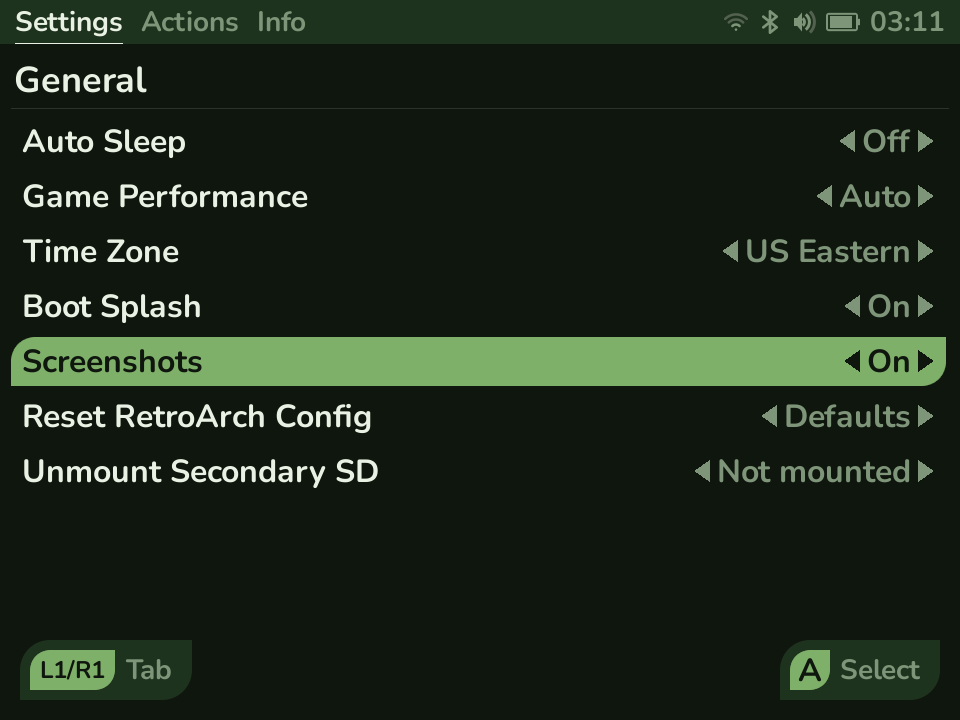
Taking a screenshot
Section titled “Taking a screenshot”Hold MENU and tap L1 - the default. The Screenshot Hotkey row on the same page puts it on another button, or turns the shortcut off while leaving screenshots themselves on. See Hotkeys.
- In the launcher, a menu, or 5-Game Mode, the screen gives a quick white flash.
- In a game, RetroArch shows its own Screenshot saved note in the corner.
Where they go
Section titled “Where they go”Every screenshot is saved to a Screenshots folder at the top level of the SD
card, so you can browse or copy them off the card easily. Filenames include the
date and time. A screenshot taken in a game is also named after the game, so a
folder full of captures is easy to sort.
What gets captured
Section titled “What gets captured”- In a game, RetroArch captures its own video frame, so the picture is exactly what the game drew - crisp, at the game’s own resolution.
- In the launcher, a menu, or 5-Game Mode, the whole screen is captured as you see it.