
Video From Hell
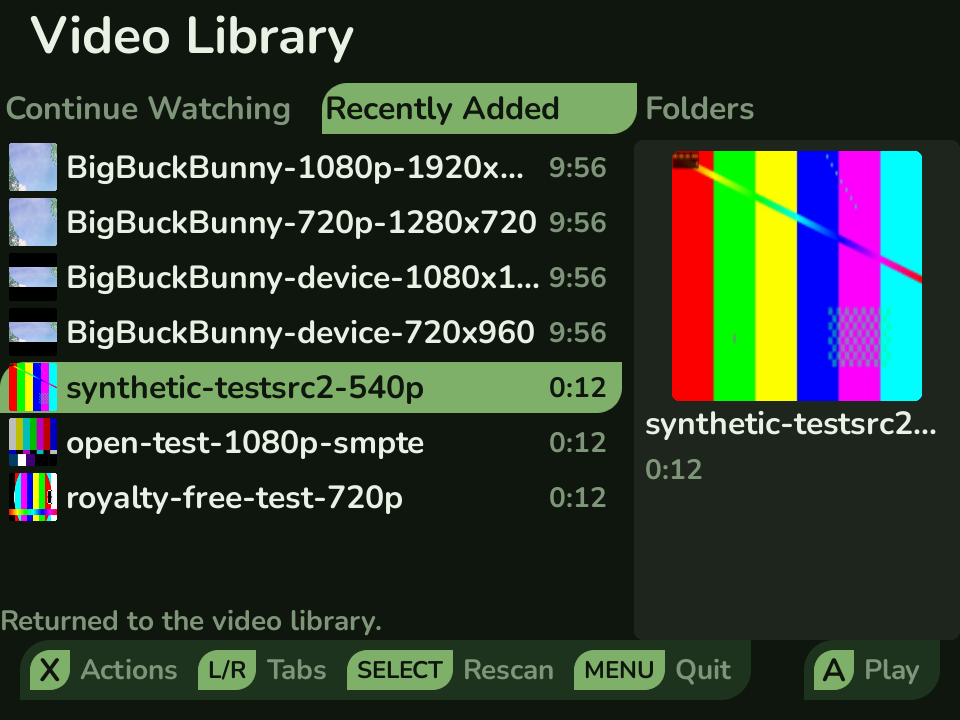
Sometimes the handheld is the only screen within reach: a bunk, a plane, a hotel room with a television that wants your credit card. Video From Hell plays whatever you have put on the SD card, films and episodes and the footage you recorded off your own play session, on the same panel you game on.
H.264 and HEVC run on the MLP1’s Rockchip video hardware rather than the CPU, so 1080p plays comfortably and the battery is not doing all the work. Other formats fall back to software decoding when the device can open them. It is named, of course, after Frank Zappa’s home-video release.
Install
Section titled “Install”Video From Hell is a standalone app, not bundled with Leaf. Install it on-device with Pak Rat: press the Menu button, open Actions → Pak Rat, choose Video From Hell, and install it over Wi-Fi. It appears in your Apps tab when the install finishes.
Manual fallback: open the
latest release,
download VideoFromHell.pak.zip, unzip it, copy the VideoFromHell.pak folder into
Apps/mlp1/ on your SD card, then run System → Rescan Library. Video From Hell is
open source (MIT).
Features
Section titled “Features”- Three ways in - Continue Watching picks up whatever you left part way through, Recently Added puts the newest files first, and Folders walks the card exactly as you organized it. Switch between them with L1 / R1.
- Hardware decoding - H.264 and HEVC are decoded by the device’s video hardware, so 1080p files play without the CPU breaking a sweat.
- One library, both cards - with two SD cards, the
Videosfolder on each is merged into a single library. Folders with the same name join up, and anything ambiguous is labelled SD1 or SD2 so you can tell which card it came from. - Your recorded gameplay - Leaf’s recordings appear as a Recorded Gameplay folder, so you can watch a session back without moving files around first.
- Posters - artwork comes from an image sitting next to the file, a
posterorfolderimage in the directory, art embedded in the video itself, or, failing all of that, a frame pulled from the film. - Picks up where you stopped - your position is saved as you watch and restored when you come back. The first 30 seconds do not count, and past 90% a video is marked watched.
- A queue - line up what to watch next, reorder it, and it is still there after you quit the app.
- On-screen display - title, clock, scrub bar, and the current audio output appear for a moment whenever you seek or pause. Press Y to pin it and get a full interactive transport.
- Subtitles - external SubRip sidecars, outlined so they stay readable over bright scenes.
- Fit, Fill, or Stretch - click the analog stick to cycle framing. Anamorphic files keep the shape they were meant to have.
- Stays awake - the backlight does not drop out part way through a film the way it does when you set the device down.
- Looks like Leaf - it inherits your color scheme and matches the rest of the firmware.
Adding videos
Section titled “Adding videos”Put videos in a Videos folder at the root of your SD card, organized however you
like. Subfolders are scanned several levels deep, and the Folders view shows the card as
it actually sits. If you run two SD cards, the Videos folder on both is merged into
one library, so it does not matter which card a film lives on. Press SELECT in the
browser to rescan after adding files.
These extensions are recognized: .mp4, .m4v, .mkv, .mov, .avi, .webm, .ts,
.m2ts, .mts, .mpg, .mpeg, .3gp, .flv.
For artwork, drop an image beside the film with the same name (Film.jpg, Film.png),
or a poster.jpg in a folder holding a single video, or a folder.jpg to give a whole
folder a cover. With none of those, Video From Hell uses artwork embedded in the file,
and failing that grabs a frame from about a tenth of the way in.
The Recorded Gameplay folder is Leaf’s own recordings folder, surfaced in the same library. Finished MP4s are preferred over the intermediate files beside them, and a recording that is still being written stays hidden until you rescan.
Subtitles
Section titled “Subtitles”External SubRip (.srt) sidecars are supported. Name the file after the video; case does
not matter:
Film.mkvFilm.srtFilm.en.srtWhen a sidecar is found, subtitles start switched on, and SELECT toggles them during playback. Text is UTF-8 and drawn with an outline so it stays legible over bright scenes.
Embedded subtitle tracks, ASS/SSA styling, and choosing between multiple audio tracks are not in this first version. Playback speed is not offered either: the parts of FFmpeg needed to change speed without turning every voice into a chipmunk are not present on the device.
Watching
Section titled “Watching”Seeking, pausing, or skipping brings the display up for about three seconds: title, elapsed and total time, a scrub bar, the current audio output, and whether you are playing or paused. Press Y to pin it instead, which makes it interactive. The d-pad moves between the transport row - previous, rewind, play / pause, forward, next - and a second row of Queue, Subtitles, Aspect, More, and Video Information. A activates whatever is focused and B puts it away.
Queue opens the list you have lined up, where A plays an entry, X removes one, Y reorders, and SELECT clears the whole thing after a confirmation. More holds chapters when the file has them; pick one and playback seeks there. Video Information shows the file, container, codecs, resolution, and where the sound is going.
At the end of a video Video From Hell asks rather than deciding for you: play the next queued video, replay this one, or go back to the library. It never advances on its own.
Controls
Section titled “Controls”| Button | Browser | Playing |
|---|---|---|
| Up / Down | move in the list | move between rows of the pinned display |
| Left / Right | jump by letter | seek back / forward 10 seconds, or move along the pinned display |
| A | open a folder, play a video | play / pause, or activate the focused control |
| B | back up one level | close a submenu, unpin the display, or return to the library |
| X | item actions (play, queue, information, history) | play / pause |
| Y | - | show or pin the on-screen display |
| L1 / R1 | switch view | previous / next, following the queue |
| L2 / R2 | - | hold to seek |
| SELECT | rescan the library | toggle subtitles |
| Stick click | - | cycle Fit / Fill / Stretch |
| MENU | quit | quit |
Leaving a film with B saves your position, so it is waiting for you under Continue Watching. Volume is handled by Leaf itself, so the hardware volume keys work here just like everywhere else.