
Features tour
A quick tour of what Leaf adds on top of your games. Most of this lives in Settings, reachable from the launcher.
Appearance
Section titled “Appearance”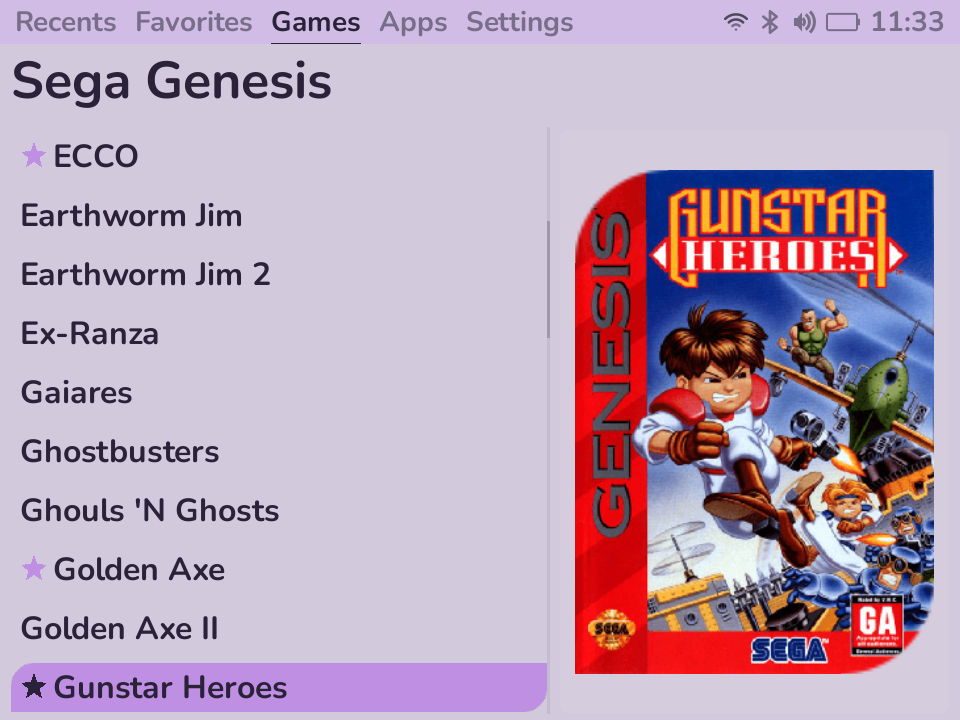
Make the launcher yours from Settings → Appearance:
- Color schemes - pick from fourteen curated palettes: a full spectrum in dark and the same spectrum in light, led by Leaf (the soft-green default). You can also hand-tune individual colors, which switches the scheme to “Custom.”
- List style - choose how the selection highlight looks (rounded, soft, square, or the directional Leaf pill).
- Fonts - pick a font family (Nunito by default, with eight more) and adjust the font size.
- Home layout - keep the classic Tabs view or switch to Coverflow, a box-art carousel with console icons where X opens search and a game’s Options.
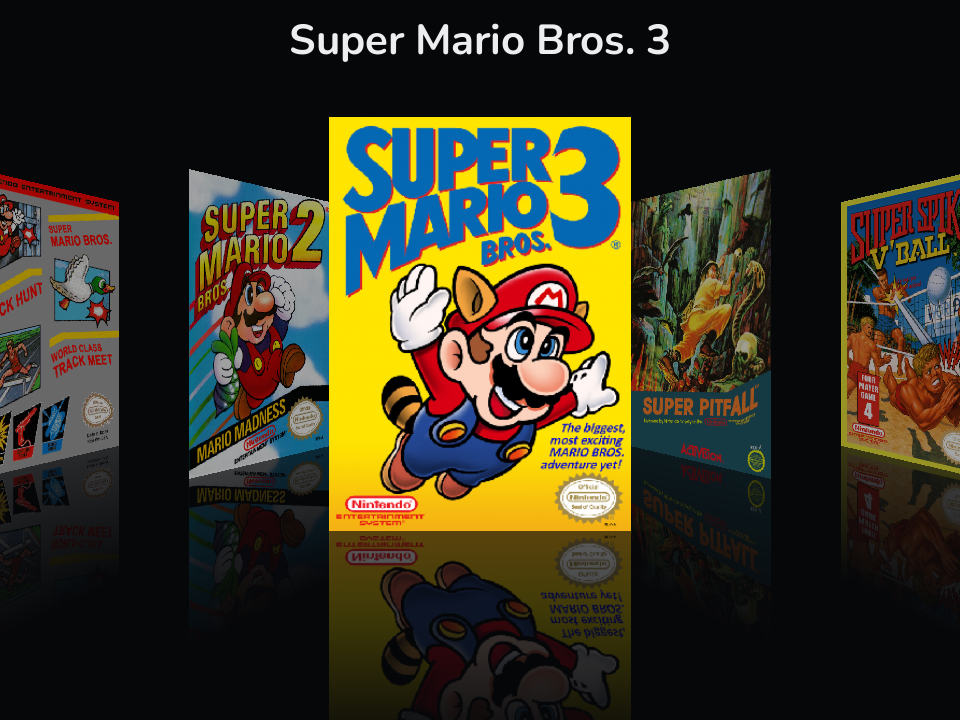
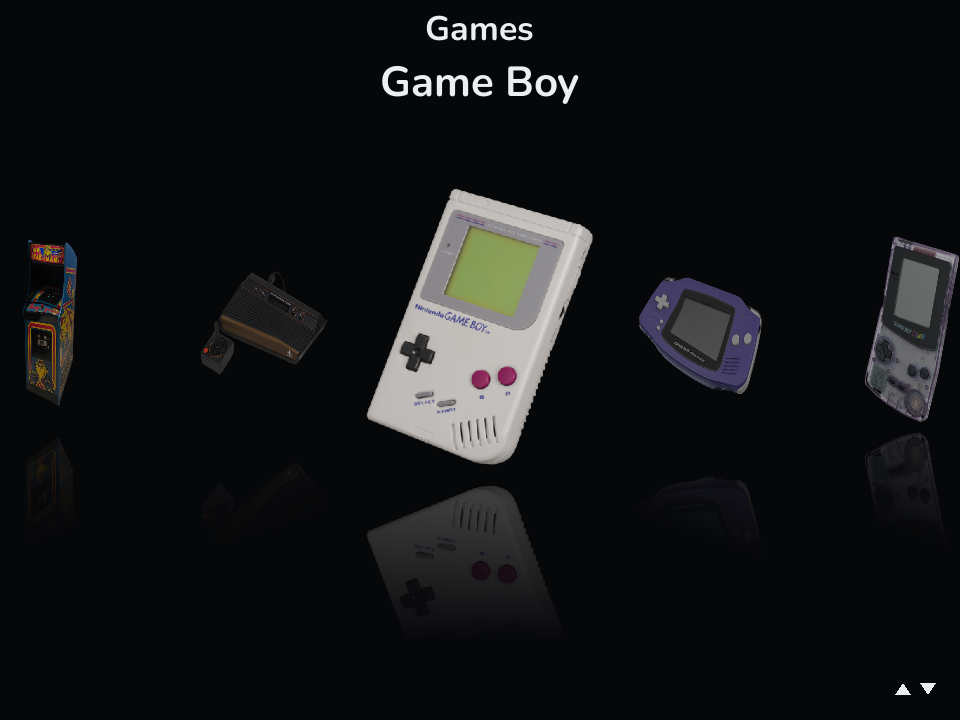
Cover Flow browses your games as a box-art carousel and your systems as glossy 3D consoles.
Status bar
Section titled “Status bar”A configurable bar across the top (Settings → Appearance → Status Bar):
- Clock - with style options.
- Battery - animated while charging, with a low-battery warning.
- Wi-Fi - connection state and signal strength.
- Bluetooth - shown when the radio is on, highlighted when a device is connected.
- Volume - the current system volume.
Each indicator can be toggled. You can also hide the button hints footer; with hints off, content expands to fill the screen, and apps built on Leaf’s toolkit follow the same setting.
Display
Section titled “Display”The Pocket 1 panel is rated for 60Hz, but Leaf drives it faster (Settings → Display & Sound):
- 100 or 120Hz refresh - a smoother launcher and smoother games on a screen the stock firmware runs at 60. Games launched through RetroArch inherit the higher rate too. Each rate divides evenly into a frame rate, so motion stays even: 120 for 60fps (NTSC) games, and 100 for 50fps (PAL) games, which judder at every other rate because 50 does not divide into them. 60Hz stays available for the longest battery life. The panel only advertises 60, so we measured it optically to confirm the higher rates are real.
- Black Frame Insertion - an optional extra that flashes a black frame between game frames to cut LCD motion blur, for a sharper, more CRT-like image in fast-scrolling games. It needs a refresh that is twice the game’s frame rate, so it is available at 120Hz for 60fps games and 100Hz for 50fps PAL games. It works in RetroArch cores and trades some brightness for the clarity, so turn brightness up to compensate. See Settings → Display & Sound.
Lighting (RGB ring)
Section titled “Lighting (RGB ring)”The stick has an RGB ring you can drive from Settings:
- Solid, breathing, and rainbow modes, plus a few animated effects.
- A breathing-green glow is the default Leaf identity.
- Toggle the ring on/off with a stick click.
Networking
Section titled “Networking”- Wi-Fi (Settings → Network) - scan, connect, and turn the radio on or off. Your choice persists across reboots.
- Bluetooth (Settings → Bluetooth) - scan for and pair headsets and controllers; game and system audio follows a connected headset automatically.
Achievements
Section titled “Achievements”Sign in to RetroAchievements once (Settings → Games → Accounts) and RetroArch logs you in at every game launch; achievements and progress show up in supported cores. See Settings → Games → Accounts.
Performance
Section titled “Performance”Settings → Games → Game Performance lets you pick how hard the device works during gameplay:
- Auto - light systems run efficiently; heavier systems automatically boost.
- Balanced / Performance / Battery Saver - pick a fixed behavior.
Leaf keeps the launcher itself in a low-power state and ramps up the CPU, GPU, and memory only when a game launches, then winds back down on exit. There’s also a live performance panel in the in-game menu for tuning while a game runs.
Menu button
Section titled “Menu button”In the launcher, the Menu button opens the System page - everything about the device, kept apart from your games. It’s tab-driven (L1 / R1): Settings, Actions (Search, System Update, a library rescan, and the session and power actions), and Info (a Device page plus Library and Playtime stats). The Menu button toggles between your games and System, so press it again to drop back to where you were. See The System page.
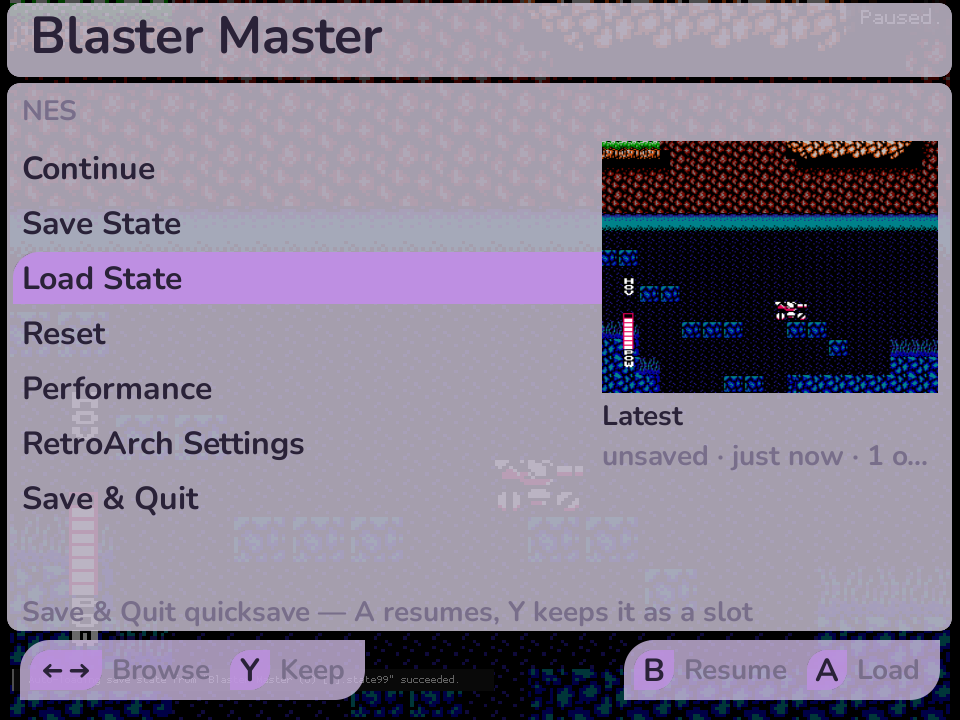
While a game is running, the same button opens the in-game menu instead - quick actions (resume, save and load states, the performance panel, shaders, RetroArch settings, and quit back to the launcher) without leaving the game. MENU > Shader is the common path for browsing Leaf’s recommendations over a frozen still and saving one for a game, folder, or all RetroArch content. See Playing games for the full in-game menu, save states, and per-game performance.
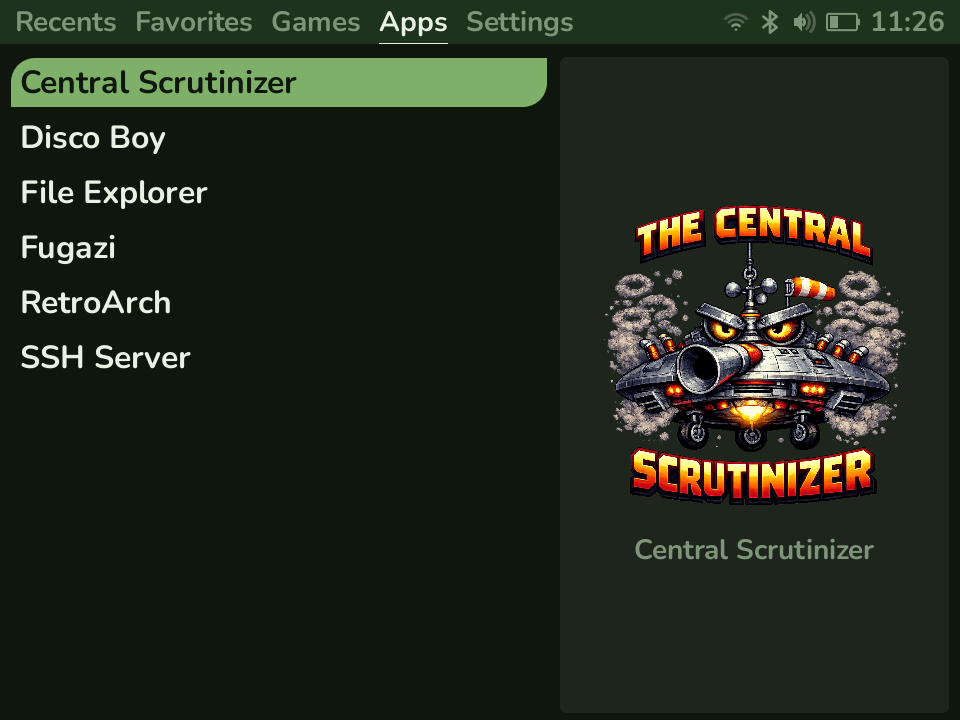
Leaf ships with a few built-in apps (under the Apps tab). Each has its own page under Built-in apps:
- Central Scrutinizer - manage your library over Wi-Fi from a web browser: upload ROMs and box art, manage saves and BIOS files, and browse the SD card, all without pulling the card.
- Fugazi - a live CRT-shader tuner. Dial in a retro look (scanlines, screen curvature, a phosphor mask, glow, and more) against a full-screen preview, then deliberately install it as the global RetroArch shader. Fugazi preserves an existing global preset after confirmation and can restore it later.
- Joe’s Calibrage - calibrate the analog stick so games see its full range.
- SSH Server - start an SSH server to reach the device over the network.
- File manager - browse and manage files on the device.
Box art
Section titled “Box art”Press X on a game or system to open its Options menu, where you can rename
it, pick a core, or set a performance profile; on a game you can also scrape its
box art. To scrape a whole system or every system at once, use Settings → Game
Art → Scrape Artwork. Leaf downloads art from ScreenScraper.fr (sign in under
Settings → Games → Accounts), and it runs in the background while you keep browsing or
playing. You can always drop images into Images/ by hand instead. See
Adding games → Box art.
Game switcher
Section titled “Game switcher”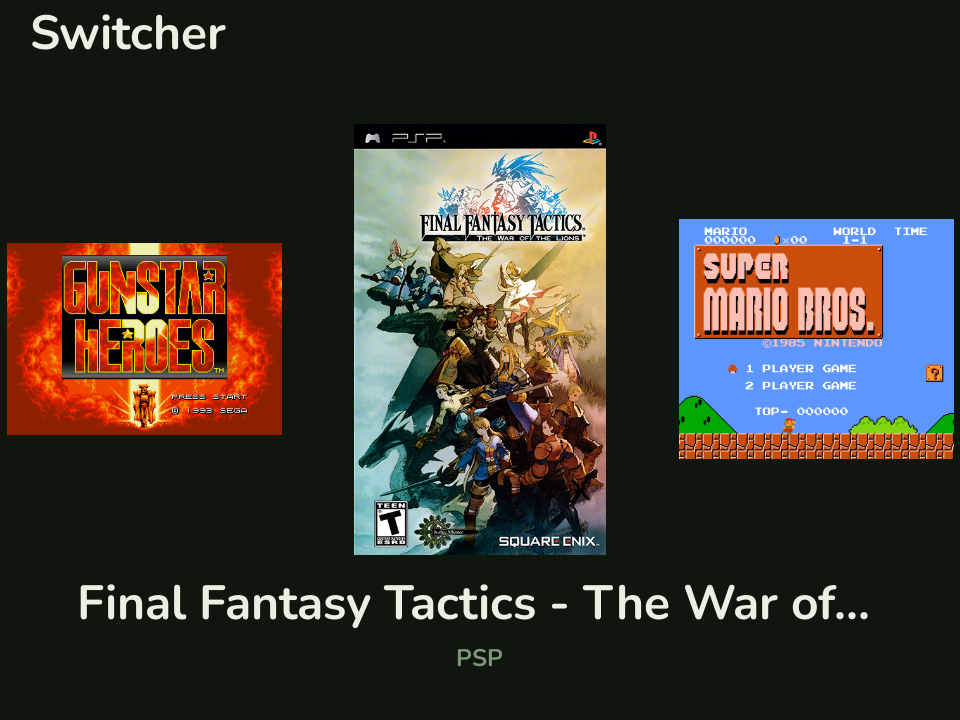
Press SELECT anywhere on the home screen to open the game switcher - a focused carousel of your recent games for jumping back in fast.
| Button | Action |
|---|---|
| Left / Right | move through recent games |
| A | resume the highlighted game |
| Y | remove the highlighted game from Recents |
| B or SELECT | close the switcher |
The currently running game shows a live snapshot of where you left off; others show their box art, or a placeholder card with the system name when there’s no art yet.
Rumble
Section titled “Rumble”The Pocket 1 has a vibration motor, and Leaf uses it two ways. The interface taps as you confirm something or run into the end of a list, and games drive the motor themselves on RetroArch cores, Dreamcast, and N64.
Settings → Hotkeys & Rumble holds the controls: UI Rumble for the interface taps (off by default, since the cursor tap fires constantly while you scroll), Game Rumble for games (on by default), and a strength slider shared by both that also acts as the ceiling for in-game rumble.
See Rumble for what each pattern means and the three controller changes that make in-game rumble possible.
5-Game Mode
Section titled “5-Game Mode”A lockable focus mode that shows five games and nothing else. Pick and arrange them from Menu → Actions → Start 5-Game Mode, choose theme colors or black and white, and optionally set a four-digit PIN.
The focused screen survives reboots, quitting a game returns to it rather than the launcher, and Wi-Fi switches off while it is active and comes back as you left it. Useful for handing the device to a child, or for cutting a large library down to the few things you actually mean to play.
See 5-Game Mode, including the failsafe for a forgotten PIN.
Screenshots
Section titled “Screenshots”Turn on Settings → Hotkeys & Rumble → Hotkeys → Screenshots, then
press Menu + L1 to capture whatever is on screen: the launcher, a menu,
5-Game Mode, or a running RetroArch game. Menu + L1 is the default; you can
put it on another button, or turn the shortcut off, on the same page. Files land
in the top-level Screenshots/ folder as PNGs, and none of it needs Wi-Fi.
See Screenshots.
Hotkeys
Section titled “Hotkeys”Leaf’s shortcuts use MENU held with a second button. MENU is always the modifier; the second button is yours to choose in Settings → Hotkeys & Rumble → Hotkeys.
| Action | Default |
|---|---|
| Game Switcher | Menu + Select |
| Screenshot | Menu + L1 |
| Recording | Menu + R1 |
Press A on a shortcut to open the supported button list, pick one, and press A again. A button another action already uses is greyed out with that action’s name beside it, so you can see the clash before you choose rather than being told afterwards. X on the row clears a shortcut outright.
Two actions cannot share a button. The buttons are named as they are printed on the device, because the point is to avoid clashing with buttons you have bound in RetroArch, and those are physical too.
When Leaf and RetroArch want the same chord
Section titled “When Leaf and RetroArch want the same chord”RetroArch has its own hotkeys behind its own modifier, which also defaults to MENU - see Playing games. If you bind a RetroArch hotkey to a button Leaf is already using and both modifiers are MENU, Leaf wins and RetroArch never sees it. Move one of them, or turn the Leaf shortcut off.
Leaf only wins when it actually does something. A screenshot shortcut with screenshots turned off, or a game switcher outside a RetroArch game, hands the whole chord to RetroArch instead - so assigning a button does not reserve it in every situation.
RetroArch shaders
Section titled “RetroArch shaders”Leaf bundles a small, curated set of GLSL shader presets, tested on this screen. Nothing switches on by itself, so a fresh install shows the original picture until you pick one. Launch a RetroArch game, press MENU, and open Shader to browse the recommendations over a frozen still, then use Left and Right to choose This game, This folder, or All RetroArch before applying or saving. Use Advanced RetroArch menu for the native Shaders screen and save there through Manage Presets > Save Game Preset or the matching native automatic scope.
The thirteen recommendations cover crisp pixel scaling, subtle scanlines, per-system Game Boy and GBA color and LCD simulations, shimmer-free scaling, and flat or curved CRT looks. Shaders only affect games running through RetroArch; standalone emulators have their own video settings. Fugazi remains the specialized tuner for a custom CRT look applied globally.
See RetroArch shaders, including which presets to keep away from Black Frame Insertion.
Recents & saves
Section titled “Recents & saves”- Recents shows what you’ve been playing; you can remove entries you don’t want.
- In-game saves and save states are written to the SD card (
Saves/,States/).