
Settings reference
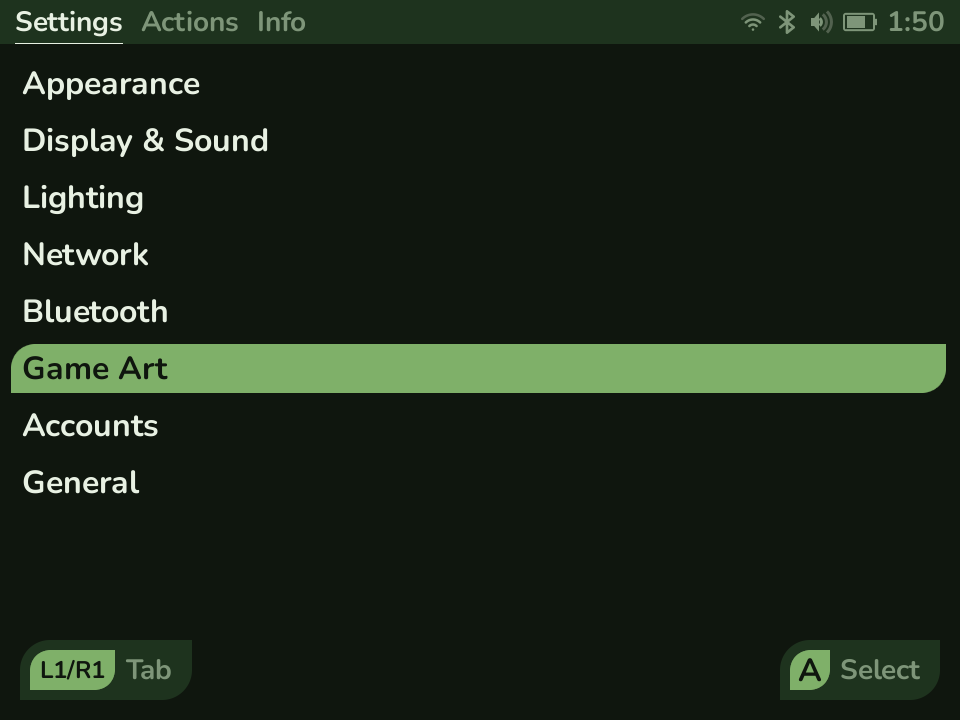
A reference for the Settings menu. Settings lives in the System page: press the Menu button and it opens on the Settings tab, whose sections are listed below. The System page holds two more tabs alongside it - Actions (system tools like System Update and a library rescan) and Info (read-only Device, Library, and Playtime pages) - covered under The System page at the end.
Appearance
Section titled “Appearance”How the interface itself looks, under Settings → Appearance.
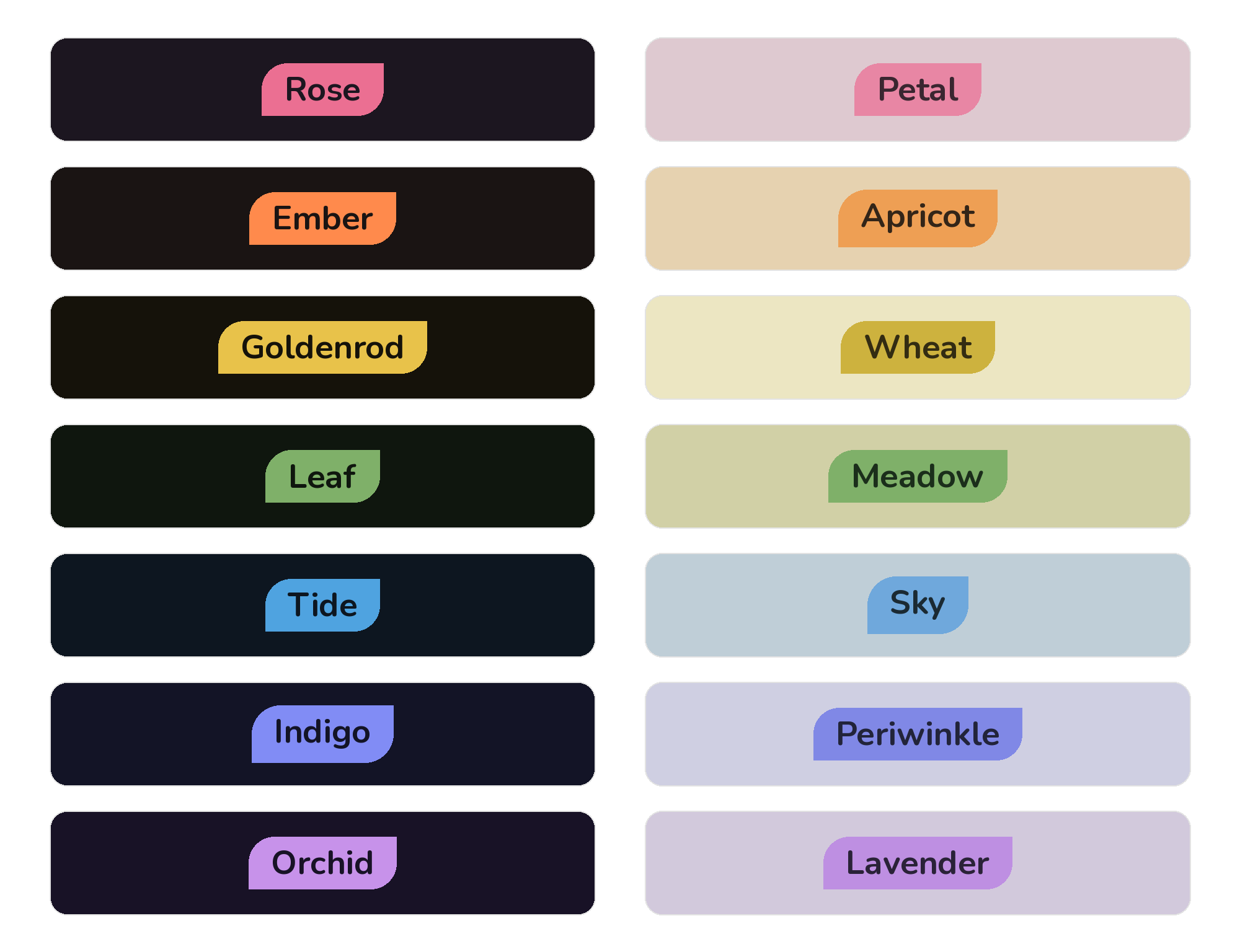
- Color Scheme - a curated palette picker: seven dark schemes and seven light ones, one of each per color of the spectrum, with Leaf (the soft-green default) leading. Each light scheme is the hue-twin of a dark one. Selecting one sets every color role at once.
- Colors - fine-tune individual color roles (accent, background, text, selection, hints, button label, button background) with a color picker. Editing any color switches the scheme to “Custom.”
- Theme - a theme from the
Themesfolder on the SD card, or None. A theme restyles Grid view and Cover Flow with its own wallpaper, colors, and system art. See Themes. - Font - the font family, Nunito by default, with eight more to choose from. A Chinese language setting pins the face, and the row says so.
- Font Size - Small, Default, Large, or Extra Large.
- List Style - Rounded, Soft, Square, or the directional Leaf pill.
- Status Bar - toggle the Button Hints footer and each status indicator: Clock (with style options), Battery, Wi-Fi, Bluetooth, and Volume. With Button Hints off, content expands to fill the screen.
Home Screen
Section titled “Home Screen”What the launcher’s home screen is and what it shows.
- Home Layout - Tabs (the default list-and-tabs view), Coverflow (a box-art carousel with console icons; press X on a game for search and its Options), or Grid (a page of tiles).
- Grid Size - how densely Grid view packs its tiles: 2 x 2, 3 x 2, 4 x 3, 5 x 3, 5 x 4, 6 x 4, 6 x 5, or 8 x 6. Automatic follows the active theme’s own suggestion, and falls back to 4 x 3 when the theme does not make one. Tiles are artwork rather than text, so the dense settings stay readable; what does suffer is a theme’s own label artwork, which is drawn at whatever size you pick. The row reads a dash while Home Layout is not Grid, and your choice comes back when it is.
- System Icons - which built-in system artwork Leaf draws: Automatic, Flat, or Photographic. A theme’s own icons win where it has them, and this fills in the rest.
- Tab Switching - Glide for a sliding page transition, or Snap for an instant cut.
- Startup Tab - which tab the launcher opens on: Recents, Favorites, Games, or Apps. Only tabs you have left visible are offered.
- Home Tabs - hide the tabs you don’t use and reorder the rest. A switches a tab off or on in place, and X grabs a row so Up/Down moves it. At least one tab always stays visible.
Display & Sound
Section titled “Display & Sound”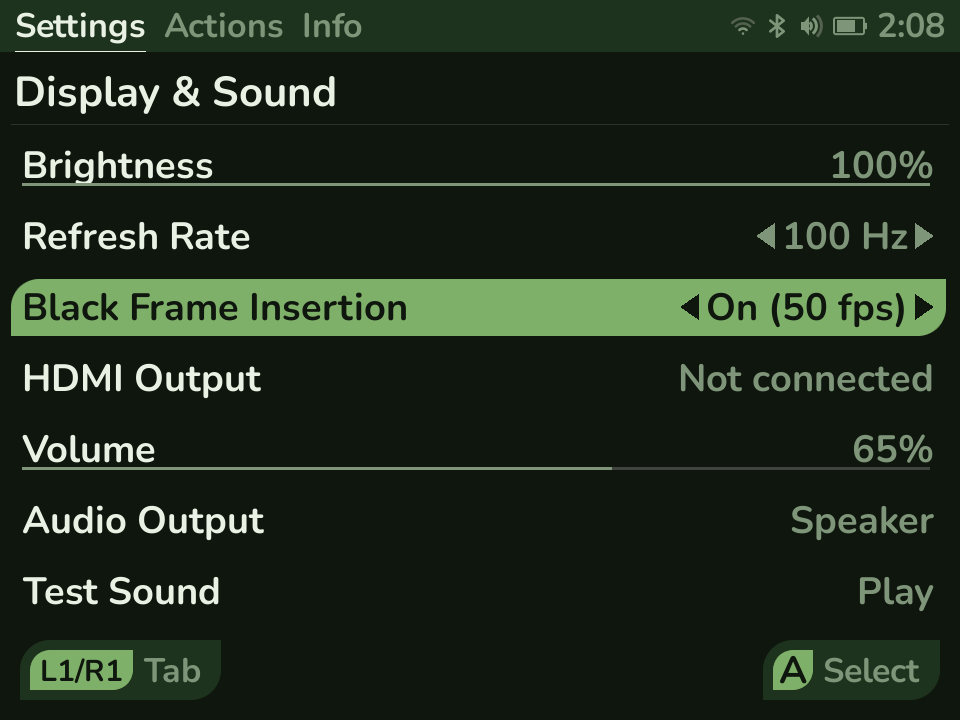
- Brightness - screen backlight level. If you keep it very low, plugging in the charger nudges the screen up to the dimmest level the hardware will hold while charging, and unplugging puts your own setting straight back. That floor is enforced below Leaf and cannot be turned off, but Leaf keeps the nudge as small as possible rather than letting the screen jump to something much brighter.
- Refresh Rate - display refresh: 60, 100, or 120 Hz. Each one divides evenly into a frame rate, which is what keeps motion even: 60 and 120 suit 60fps (NTSC) games, and 100 suits 50fps (PAL) games. A rate that does not divide evenly has to hold some frames on screen a refresh longer than others, and that unevenness is what you see as stutter in scrolling - which is why PAL games look better at 100 than at 60. Of the two NTSC rates, 120 shows less motion blur and 60 is the most power-efficient. On a TV this setting also picks the HDMI mode and the sharp-versus-smooth trade-off (see How the TV picture works). The panel only advertises 60 Hz, so the higher rates are a timing overclock - we measured the panel optically to confirm 120 Hz is real.
- Black Frame Insertion - inserts a black frame between game frames to cut motion blur, for a sharper, more CRT-like image in fast-scrolling games. It needs a refresh rate that is exactly twice the game’s frame rate, so that every frame gets one lit refresh and one black one: 120 Hz for 60fps games and 100 Hz for 50fps (PAL) games. At 60 Hz there is no spare refresh to blank, so the row is grayed out as “100/120 Hz only”. The row names the frame rate it is currently set up for, such as “On (50 fps)” - match that to what you are playing, because it is a single setting rather than a per-game one, and a 60fps game left running at 100 Hz gets paced down to 50 and runs slow. It applies to RetroArch-based games, on the built-in screen or on a 120 Hz TV, and trades some brightness for the clarity, so turn Brightness up to compensate. At 100 Hz the strobe is 50 Hz, exactly like a PAL CRT, which some people see as flicker - if it bothers you, leave it off and keep the 100 Hz refresh, which still smooths PAL motion on its own.
- HDMI Output - send the picture to a TV over HDMI in the right shape. Off keeps everything on the built-in screen; 4:3 sends a pillarboxed, correctly proportioned image (black bars on the sides, no stretching); Stretch fills a 16:9 TV edge to edge. Leaf switches over on its own when you plug a cable in and drops back to the handheld when you unplug, and the sound follows the picture to the TV. Grayed out as “Not connected” until a TV is plugged in. The Refresh Rate setting controls how sharp versus smooth the TV image is (see below).
- Volume - system volume (also adjustable with the hardware volume keys, which show an on-screen overlay).
- Audio Output - audio routing: Speaker, Headphones, a connected Bluetooth device, or HDMI when a TV is connected. Use the left and right buttons to switch.
- Test Sound - plays a short clip on the current output so you can confirm sound and which device it lands on.
How the TV picture works
Section titled “How the TV picture works”When you connect a TV, the Refresh Rate setting decides the trade-off between a sharp picture and a smooth one, and Leaf picks the best HDMI mode the TV actually supports. The setting offers just 60 and 120 Hz while a TV is connected, since no TV takes the 100 Hz PAL mode and every rate below 120 lands on the same 720p picture anyway:
- 60 Hz sends 720p. The handheld’s 4:3 image lands on the TV one pixel for one with no scaling, so it is pin-sharp. This is the safe default and works on every HDMI TV.
- 120 Hz sends 1080p at 120 Hz (when the TV reports it). Motion is smoother and Black Frame Insertion becomes available on the TV, but the 4:3 image is scaled up to fill 1080p, so it looks a touch softer than the 720p version.
Leaf reads the TV’s own list of supported modes over HDMI, so it only switches to 120 Hz when the set genuinely handles it. If a TV tops out at 60 Hz, choosing 120 simply stays on the sharp 720p picture and the Black Frame Insertion row stays grayed. A 1080p120 signal needs a high-speed (HDMI 2.0 or newer) cable. If your TV or cable can’t carry it the picture goes black - so whenever Leaf switches to 1080p120 it shows a short prompt and, unless you confirm, drops back to the safe 720p picture after a few seconds. Once your TV is clearly showing the image, press L1 then R1 to keep the mode; otherwise just wait (or press B) and it reverts on its own. That way a cable that can’t handle 120 Hz can never strand you on a screen you can’t see.
Why not sharp and smooth at the same time? TVs only offer 120 Hz at 1080p or higher, never at 720p, and the 4:3 image is only pixel-perfect at 720p. So crisp (720p, 60 Hz) and smooth (1080p, 120 Hz) are a real either-or on a TV, and the Refresh Rate setting is how you choose between them.
Lighting
Section titled “Lighting”Control the RGB ring around the stick:
- Mode - solid, breathing, and rainbow, plus a few animated effects.
- Color, Brightness, and Speed.
A breathing-green glow is the default Leaf identity; the ring can also be toggled with a stick click.
Scan for and join networks, see connection status, signal strength, and IP address, and turn the radio on or off. The on/off state persists across reboots. (Developers will also find an ADB-over-network toggle here.)
Bluetooth
Section titled “Bluetooth”Pair and connect headsets and controllers. Bluetooth is deliberately manual: press X to scan, then connect or pair the device you want - there’s no background scanning. Each entry shows a device-type icon (headset, controller, and so on) before its name.
- One audio device connects at a time; a game controller can stay connected alongside a headset.
- Game and system audio follows the connected headset automatically - no need to switch the output by hand. (You can still pick the output under Display & Sound → Audio Output.)
- Reconnect a paired device from this page whenever you want it; Y unpairs it.
Artwork, how games run, and the accounts that serve them. Download artwork from ScreenScraper.fr and control how Leaf picks it (sign in first under Accounts).
- Scrape Artwork - start a scrape for All Systems or a single system. Each row shows how many of that system’s games are missing art. Y switches between Missing (only games without art) and Replace All (re-fetch everything); A starts the scrape and drops you on the Scrape Queue to watch it. For one game, press X on it in the launcher instead.
- Scrape Queue - the live list of scrape jobs and their progress. A opens a finished job’s result (status and the downloaded art), Y filters the list, and X stops everything or clears finished rows.
- Artwork Priority - the order Leaf prefers artwork types (box art, title screen, in-game shot, and so on). It saves the first type a game has available.
- Region Priority - the order Leaf prefers regions when a game has art for several. On each list, A includes or excludes an entry, and X grabs an entry so Up/Down reorders it.
- Game Performance - how hard the device works during gameplay: Auto, Balanced, Performance, or Battery Saver. See Features → Performance.
- Reset RetroArch Config - restore RetroArch to its defaults. This erases settings stored in the shared config, but leaves per-core options, input remaps, games, and saves untouched. See RetroArch settings.
- Accounts - opens the sign-ins below.
Accounts
Section titled “Accounts”Sign-ins for external services. Press A on a row to enter your credentials with the on-screen keyboard; press Y to sign out. When a status line is too long to fit, it scrolls while the row is selected.
- RetroAchievements - signs RetroArch into retroachievements.org at every game launch, so achievements appear in supported cores. Use your account username, not your email address. If a launch happens to miss the sign-in (a Wi-Fi blip), the next one retries.
- ScreenScraper.fr - signs Leaf into screenscraper.fr so it can download artwork (see Games above, and Adding games → Box art). The row reads “Saved” until the first scrape verifies the login, then “Signed in as <user>” with your thread allowance and daily quota.
Hotkeys & Rumble
Section titled “Hotkeys & Rumble”- UI Rumble - the short buzz the interface makes as you move around it.
- Game Rumble - rumble inside games, handed to the emulator.
- Strength - how strong both are, from 0 to 100 percent.
- Hotkeys - the Menu button chords: the game switcher, and screenshots and game recording with the button each one answers to. See Screenshots and recording.
System
Section titled “System”- Language - the language Leaf draws itself in. Left and Right browse the installed languages and A applies the one you stopped on, after a confirmation. See Language.
- Time Zone - set your local time zone so the clock is correct.
- Auto Sleep - idle timeout before the device sleeps, or Never.
- Boot Splash - show or hide the Leaf boot animation.
- SD Cards - lists both cards, and offers to check, repair, or safely unmount one. Repair needs the charger connected and no game running.
- Services - background helpers an app installed, with what each one is doing and whether it starts with Leaf. The row appears only when something is installed.
The System page (Menu button)
Section titled “The System page (Menu button)”Leaf is organized into two areas. The home tab strip is Content - your games: Recents, Favorites, Games, and Apps. Everything about the device lives in System, which you open with the Menu button.
The Menu button is the toggle between the two. Press it to step into System from anywhere - including from inside a system’s game list - and press it again to drop back to exactly where you were. B only steps back within whichever area you’re in and never jumps across the two, so the Menu button is how you leave System.
The System page is tab-driven, like the home strip; L1 / R1 switch between its three tabs:
- Settings - everything documented above (Appearance, Display & Sound, Network, Bluetooth, and so on). This tab opens first.
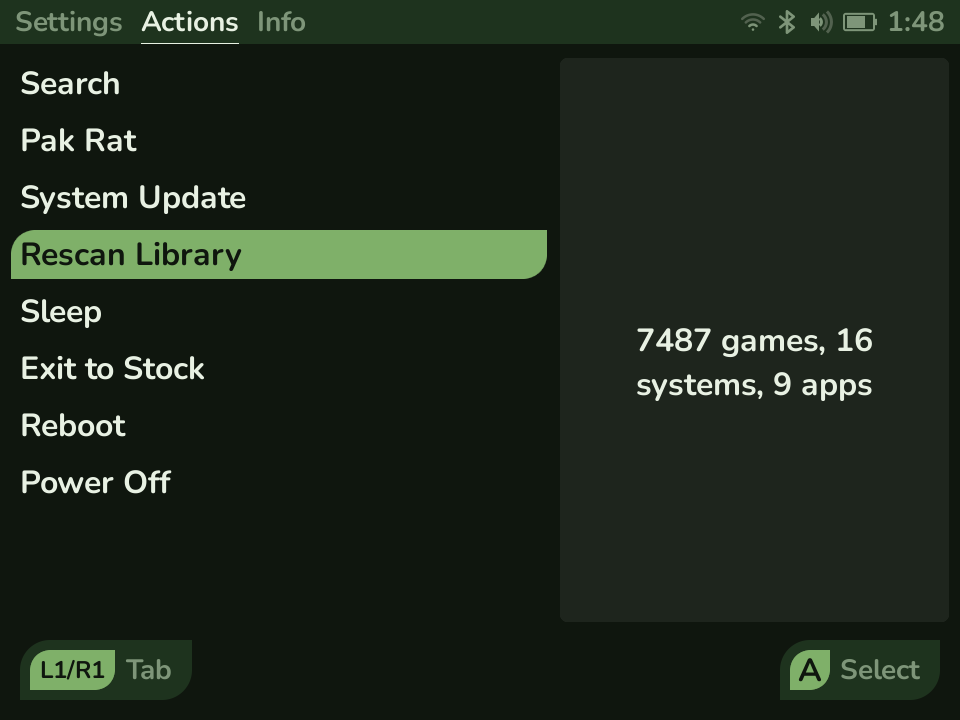
- Actions - things you do:
- Search - search your whole library.
- System Update - check for, download, and install updates over the air. See Updating (OTA).
- Rescan Library - re-index games and apps; the live game and app counts show beside the row.
- Sleep, Exit to Stock, Reboot, and Power Off - session and power actions.
- Info - read-only pages about your device and library:
- Device - the installed Leaf version, system info (OS, kernel, hardware, and
network addresses), and the open-source components Leaf is built on, each with
its license. The full license text for every bundled emulator also ships inside
the install under
licenses/. - Library - the size of your collection: total games, systems, and apps, favorites, box-art coverage, and a per-system breakdown.
- Playtime - how much you’ve played: total time, games played, your most-played titles, and a per-system breakdown.
- Device - the installed Leaf version, system info (OS, kernel, hardware, and
network addresses), and the open-source components Leaf is built on, each with
its license. The full license text for every bundled emulator also ships inside
the install under