
Disco Boy
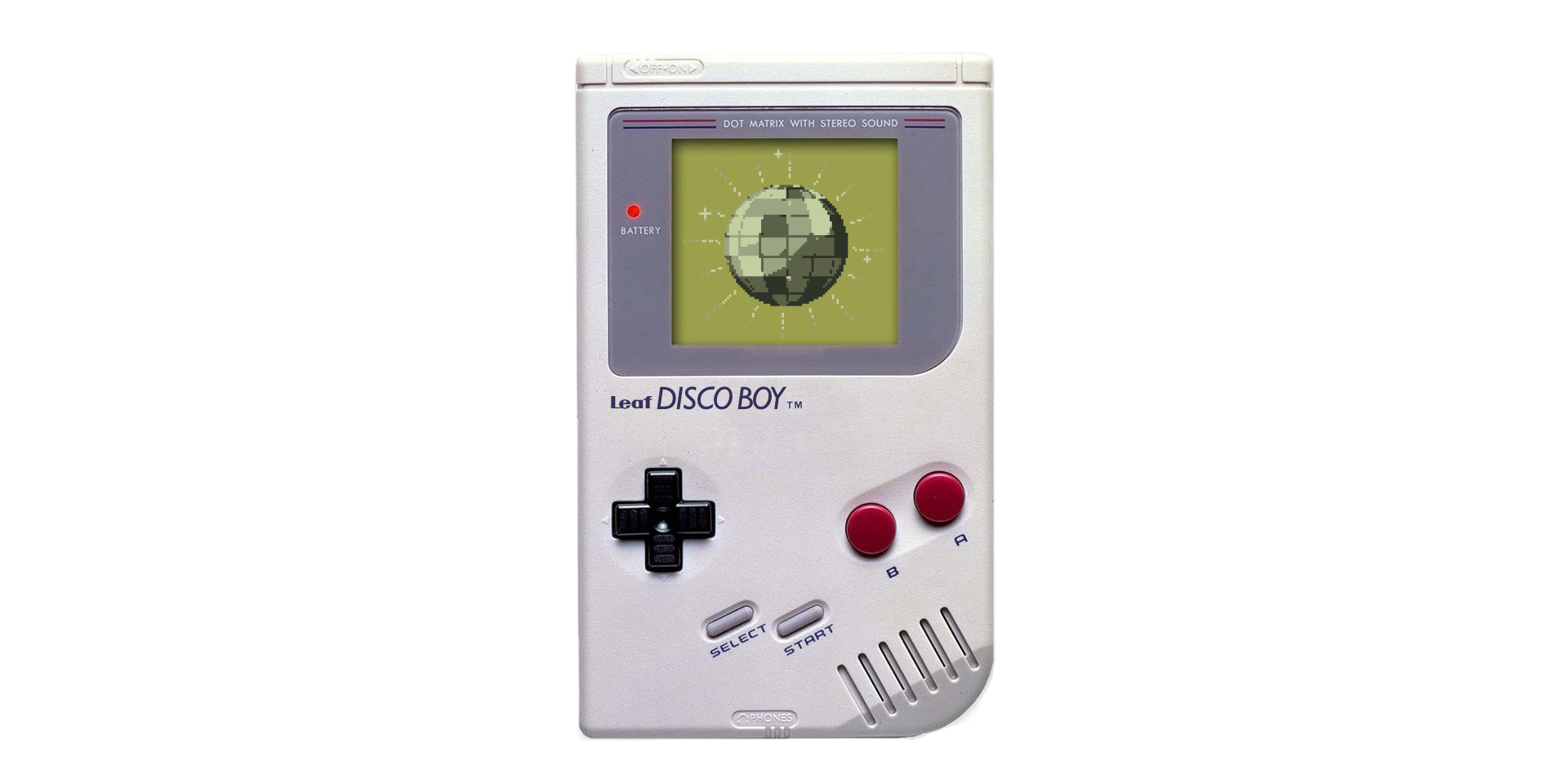
Let’s be honest: the mono speaker on the MLP1 is nothing to write home about, and no-one wants to hear your device in public anyway. So put on your headphones, wired or Bluetooth, and rock out. Disco Boy is a small music player that sends sound straight to whatever you are listening on.
Install
Section titled “Install”Disco Boy is a standalone app, not bundled with Leaf. Install it on-device with Pak Rat: press the Menu button, open Actions → Pak Rat, choose Disco Boy, and install it over Wi-Fi. It appears in your Apps tab when the install finishes.
Manual fallback: open the
latest release,
download DiscoBoy.pak.zip, unzip it, copy the DiscoBoy.pak folder into
Apps/mlp1/ on your SD card, then run System → Rescan Library. Disco Boy is
open source (MIT).
Features
Section titled “Features”- Browse the way you think - tabs for Artists, Albums, and Folders. Artists open to their albums, albums to their tracks, and Folders walks the real card layout for anything else. Switch tabs with L1 / R1.
- Plays just about anything - WAV, MP3, FLAC, and OGG decode on the device, and M4A / AAC / ALAC, Opus, WMA, AIFF and more play through the firmware’s built-in media support.
- Cover art - shows a sidecar
cover.png/folder.jpg, or the artwork embedded in the file itself; thumbnails in the lists and full-size art on the album header and now-playing screen. No art, and it draws a tidy vinyl record in your theme color. Press SELECT any time for a full-screen view of the current cover, nothing else on screen. - A now-playing screen - press Y for big art, a scrubber, and a full transport: play / pause, skip tracks, scrub back and forward, shuffle, and repeat (off, all, or one).
- Keeps up with you - the track you are playing follows you between views, the queue follows the list you played it from, and you can jump by letter with Left / Right in any list.
- Follows your output - plays through the speaker, wired headphones, or a Bluetooth headset, named up top. Plug in or connect part way through a song and the sound follows.
- Pocket mode - click the analog stick and a padlock flashes, the screen powers off, and buttons stop responding, so it can ride in your pocket without skipping or pausing. Music keeps playing; click the stick again to wake it and unlock.
- Looks like Leaf - it inherits your color scheme and matches the rest of the firmware.
Adding music
Section titled “Adding music”Disco Boy reads from the Music folder on your SD card. Organize it however you
like, whether loose tracks, Artist/Album subfolders, or a mix; the Artists and
Albums views are built from each track’s tags, and Folders shows it exactly as it
sits on the card. For album artwork, drop a cover.png or folder.jpg in a folder,
or just leave the art embedded in the files.
If you run two SD cards, Disco Boy scans the Music folder on both and merges
them into one library, so it does not matter which card a track lives on. The Folders
view keeps each card separate so you can still browse them individually. With a single
card it just reads that one - nothing to configure either way.
Controls
Section titled “Controls”| Button | Action |
|---|---|
| Up / Down | move in the list |
| Left / Right | jump by letter |
| A | open an artist, album, or folder, or play a track |
| B | back up one level |
| X | play / pause |
| Y | toggle the now-playing screen |
| L1 / R1 | switch tab |
| L2 / R2 | hold to seek (now-playing track) |
| SELECT | full-screen cover art (press again, or B, to close) |
| Stick click | lock the screen (pocket mode); click again to unlock |
| MENU | quit |
On the now-playing screen, the d-pad and A move across the transport row, L1 / R1 skip tracks, and L2 / R2 hold to seek. Volume is handled by Leaf itself, so the hardware volume keys work in Disco Boy just like everywhere else.