
5-Game Mode
5-Game Mode turns your handheld into a stripped-down, focused device. You pick up to five games, and everything else disappears behind a lock. It is handy for handing the device to a kid, cutting out the endless scrolling, or just enjoying a small curated set without distractions.
Turning it on
Section titled “Turning it on”Press MENU to open the system menu, switch to the Actions tab, and choose Start 5-Game Mode. A short setup runs:
- Pick - the familiar games browser opens, titled Pick 5 Games. Browse your systems and mark up to five games; a checkmark shows which are chosen and the header counts your picks (for example, 3 / 5). Press Y at any time to clear the whole set and start over.
- Arrange - put the chosen games in the order you want them on screen. Press X to grab a tile, move it with the D-pad, and press X again to drop it. Press Y to remove a tile you no longer want.
- Lock - choose No lock or a PIN. A PIN is a four-digit code you set and then re-enter to confirm.
- Style - pick Theme colors (your current color scheme) or Black & white.
- Confirm - a preview of the chosen games appears. Press A to start.
Once you confirm, the device drops into the focus screen and stays there, even across a reboot, until it is unlocked. The last set you picked is remembered, so starting the mode again begins right where you left off.
Using the focus screen
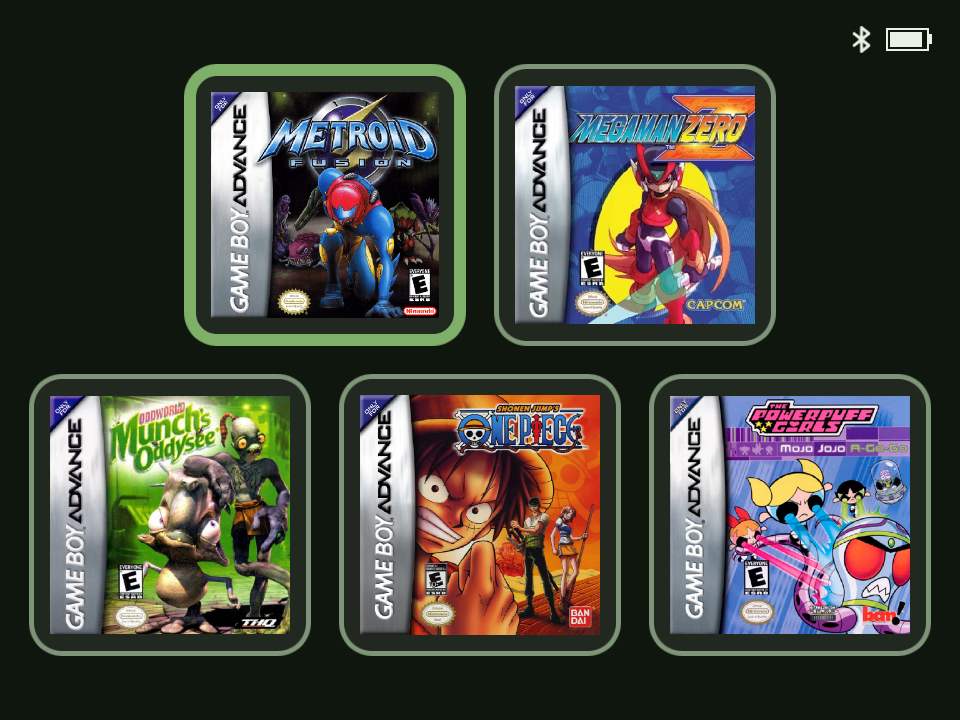
Section titled “Using the focus screen”The focus screen shows your games as box-art tiles and nothing else, apart from a small battery indicator in the corner (and a Bluetooth icon beside it when a paired headset is disconnected). Move with the D-pad and press A to play. When you quit a game, you come straight back to the focus screen.
Getting out
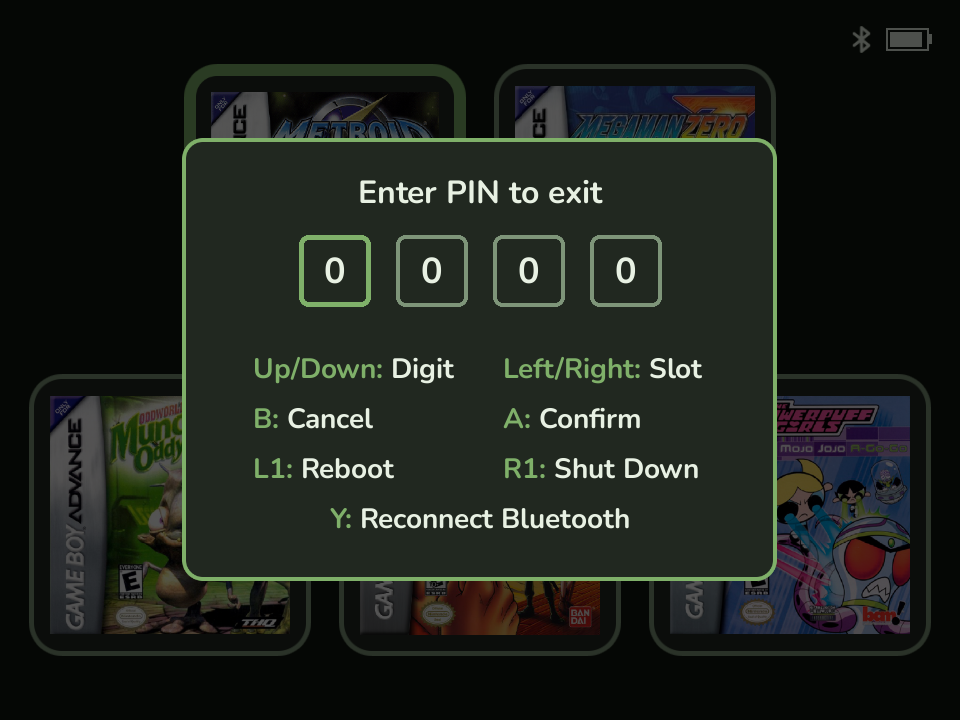
Section titled “Getting out”Press MENU to open the unlock prompt:
- With no lock, press A to return to the normal launcher.
- With a PIN, enter your four-digit code and press A.
The same prompt also offers L1 to reboot and R1 to power off. Those do not need the PIN, since powering off or rebooting just brings the device back into focus mode rather than unlocking it. You can also sleep the device with a tap of the power button, or power it off with a long press, at any time.
Wi-Fi and Bluetooth
Section titled “Wi-Fi and Bluetooth”Entering 5-Game Mode turns Wi-Fi off. It is not needed here, and switching it off helps battery life and keeps Bluetooth audio stable. Your previous Wi-Fi state is restored automatically when you exit.
If you use a Bluetooth headset, pair it in the normal launcher first. In focus mode, a small Bluetooth icon appears next to the battery when the headset is paired but not connected. Open the unlock prompt and press Y to reconnect it.
Forgot the PIN?
Section titled “Forgot the PIN?”There are two ways back in if you forget your code:
- The failsafe button hold. On the focus screen, hold Menu + Select + Start + L2 + R2 together for about two seconds. This always exits, whatever the lock is set to. It takes five buttons on purpose, so a child will not trigger it by accident.
- Delete the lock file. Power the device off, remove the microSD card, put it
in a computer, and delete the file named
.leaf-focus-lockat the top level of the card. The device comes up unlocked on the next boot. Your games and saves are untouched.