
Joe's Calibrage
Joe’s Calibrage measures how far your analog stick actually reaches and saves a profile so Leaf can remap it to the full range games expect.
Leaf already starts from a default range that every Miniloong Pocket 1 measured so far reaches, so your stick works without calibrating. Calibrate if it still feels like it will not push all the way (characters walk when they should run, or aiming feels clipped), or to tune the full throw to your own stick.
Using it
Section titled “Using it”Open Joe’s Calibrage from the Apps tab. It has a few screens:
- Test Stick - move the stick and watch the dot. This shows what games see, so you can check whether calibration is needed and confirm it afterward.
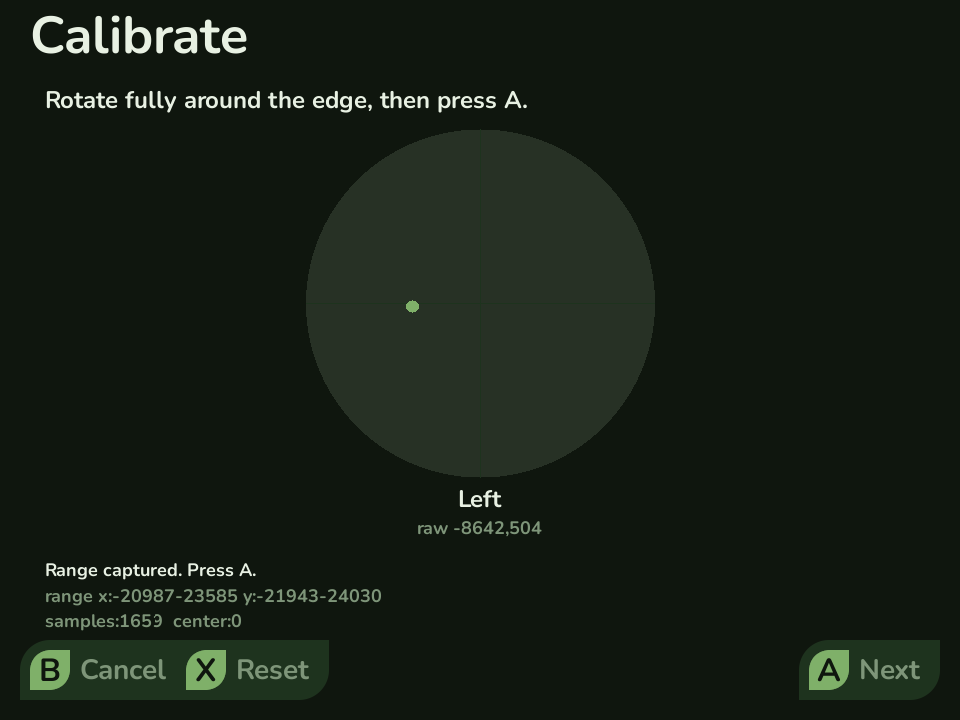
- Calibrate - roll the stick all the way around the edge a few times so it can learn the real maximum reach on both axes, then press A to save. There is no centering step: your device re-centers the stick every time it starts.
- Center Stick - re-centers the stick at the driver level until the next restart. You rarely need it, because the stick is re-centered at every startup and Leaf ignores the small offset a released stick can report. Use it if the dot in Test Stick still sits off center after you let go.
- View Values - shows the saved profile, or the default if you have not calibrated, for reference.
- Restore Backup - reverts to the original factory calibration. Joe’s Calibrage backs that up the first time you save, so you can always go back.
How it is applied
Section titled “How it is applied”Your profile is saved to your user data on the SD card and read by Leaf at startup, so once you calibrate, every game and the launcher itself see the corrected stick. Without a profile, Leaf uses its default range. There is nothing to turn on per game.
- Built for the Miniloong Pocket 1 and its single stick.
- Recalibrate if you ever replace the stick, or if its reach shrinks over time.
Joe’s Calibrage is open source (MIT).