
Building a Leaf app
Leaf apps are small native programs packaged as a .pak. They are built on
Catastrophe,
the same C/SDL2 toolkit the launcher itself uses, so a well-built app looks and
feels like a built-in part of Leaf rather than a bolt-on.
This page shows how to make an app that fits in: how a pak is structured, how the box model lays out a screen so your spacing matches the launcher at any font size, and the handful of conventions (theme colors, fonts, button grammar) that make an app feel native.
There is a complete, runnable example to read alongside this page:
Catastrophe/examples/leaf-app/ - a list with a preview that drills into a
scrollable detail page, which is the shape most Leaf apps take.
Anatomy of a pak
Section titled “Anatomy of a pak”A Leaf app is a directory named YourApp.pak containing at least:
YourApp.pak/ pak.json # metadata: name, icon, version, description launch.sh # entry point Leaf runs your-app # your compiled binary icon.png # square app icon (optional; a default is shown if absent)pak.json is what the launcher reads to list your app. The display name and icon
come from here, not the folder or binary name:
{ "name": "Leaf App", "version": "v1.0.0", "icon": "icon.png", "platform": "mlp1", "pak_version": "1.0.0", "min_leaf_version": "0.7.0", "type": "TOOL", "description": "What the app does, shown in the app store.", "author": "your-name", "repo_url": "https://github.com/your-name/leaf-app"}This page covers a launchable app. To add a console-style system, libretro core,
or standalone emulator, build a
content pak instead; content paks use a
provides manifest and do not patch Leaf’s release-managed catalog.
launch.sh is run from inside the pak directory with the platform environment
set (PLATFORM, DEVICE, HOME, and the *_PATH data roots). The minimal job
is to route logs to the shared userdata area and exec your binary:
#!/bin/shset -euAPP_BIN="your-app"PAK_DIR=$(CDPATH= cd -- "$(dirname -- "$0")" && pwd)cd "$PAK_DIR"
LOG_ROOT=${LOGS_PATH:-"${SHARED_USERDATA_PATH:-${HOME:-/tmp}/.userdata/shared}/logs"}mkdir -p "$LOG_ROOT"exec >>"$LOG_ROOT/$APP_BIN.txt" 2>&1echo "=== Launching $APP_BIN at $(date) ==="
exec "./$APP_BIN" "$@"
Write durable data under the *_PATH roots Leaf provides, never inside the pak
(an app store update replaces the pak directory). See the example’s pak/
folder for a working copy.
The box model
Section titled “The box model”Every Leaf screen is the same three parts: a title band, a content area, and an optional footer hint bar. The content area is usually split into a list column and a detail column. You build that layout by carving fixed-height bands off the screen and splitting the remainder - the box model.
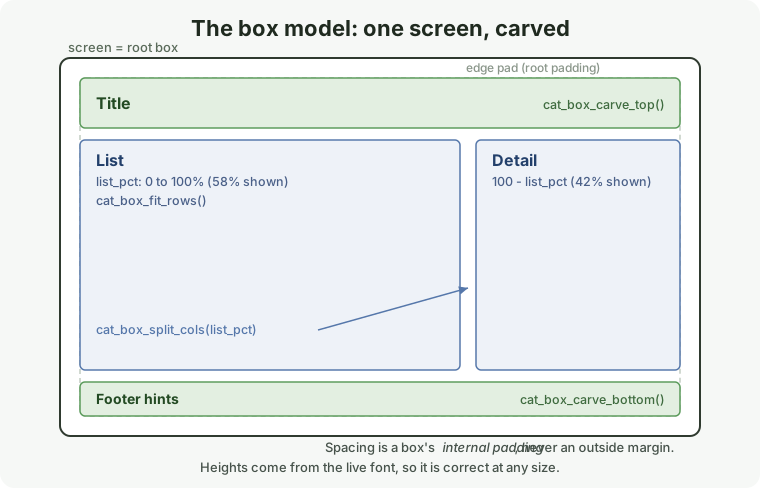
Two ideas make it produce Leaf-consistent layouts for free:
- Padding, never margins. A box only ever pads its contents inward; it never reserves space outside itself. Boxes tile their parent with no gaps, so every visible gap on screen traces back to one box’s internal padding. There is a single number to tune.
- Heights come from the live font. The title and footer band heights are derived from the current font at render time, never hardcoded. The same layout is correct at any font size or DPI, and with the hint bar on or off.
The primitives live in catastrophe.h:
cat_box root = { 0, 0, cat_get_screen_width(), cat_get_screen_height(), pad, pad, pad, pad }; // a rect + internal paddingcat_box title = cat_box_carve_top(&root, title_h); // band off the top cat_box_carve_bottom(&root, cat_get_footer_height()); // and bottomcat_box list, detail;cat_box_split_cols(&root, list_w, gutter, &list, &detail); // remainder -> columnsSDL_Rect rows = cat_box_fit_rows(&list, base_row_h, count, &visible, &row_h);cat_box_fit_rows is worth calling out: it stretches the rows to fill the column
exactly (no ragged gap below the last row) and is the filled-grid invariant -
the number of items never changes the geometry, so a 3-item list and a 30-item
list sit on the same grid.
The example wraps this carve in a tiny, copy-paste header,
examples/leaf-app/leaf_layout.h, so your screens read as:
SDL_Rect title;cat_box content = leaf_carve(&title, /*has_footer=*/true);leaf_title("Leaf App", title);cat_box list_box, detail_box;leaf_split(&content, /*list_pct=*/58, &list_box, &detail_box);The two columns share one width: list_pct is how much goes to the list and the
detail column takes the rest, so the split flexes to whatever the screen needs.
Pass 100 for a list with no preview, or skip leaf_split entirely and hand the
whole content box to one thing - which is exactly what the example’s detail screen
does, giving its full width to a scroll view.
Drop the header into your app, or rebuild the same few lines from the primitives - either way your gaps match the launcher.
Conventions that make it feel native
Section titled “Conventions that make it feel native”The layout gets you most of the way; these conventions do the rest.
Use theme color roles, never hardcoded colors. Leaf ships 14 color schemes;
an app that hardcodes colors breaks on most of them. Pull from cat_get_theme():
| Role | Use it for |
|---|---|
text | default body text |
hint | dim / secondary text, metadata |
highlight | the selected-row pill |
highlighted_text | text on a selected row |
emphasis | section headings and status (contrast-clamped to stay legible) |
accent | the footer pill, status bar |
background | the screen background |
Use the font tiers from cat_get_font(...): CAT_FONT_EXTRA_LARGE for screen
titles (matches the launcher’s drilled-in pages), CAT_FONT_MEDIUM for body and
list rows, CAT_FONT_SMALL for metadata. Never load your own sizes.
Follow the button grammar so muscle memory carries over:
| Button | Meaning |
|---|---|
| A | primary action - confirm, open, drill in |
| B | back (and at the top level, quit) |
| MENU | quit the app, from anywhere |
| X / Y | secondary actions (label them in the footer) |
| L1 / R1 | switch tabs, when you have them |
Always draw the footer hint bar with cat_draw_footer(...) so the buttons are
labeled, and respect the user’s Show Hints setting.
Overflow scrolls, it does not shrink. When content is taller than its box, put
it in a cat_draw_scroll_view and let the user scroll (the detail page in the
example does this), rather than shrinking the font to fit. For a single long line,
use a marquee or cat_draw_text_ellipsized.
Drill in to a page, do not stack modals. The Leaf pattern for “show me more” is a sub-screen in your own render loop (press A to enter, B to return), not a nested blocking dialog. The example’s detail page is exactly this.
The render loop
Section titled “The render loop”Unlike the all-in-one cat_list() helper, a real app drives its own loop: poll
input, draw the active screen, present. This is what lets you have a list that
drills into a detail page.
bool running = true;while (running) { cat_input_event ev; while (cat_poll_input(&ev)) { if (!ev.pressed) continue; // dispatch ev.button by the active screen } cat_draw_background(); // themed background // ... draw the active screen via the box model ... cat_draw_footer(footer, footer_count); cat_present();}cat_quit();Read examples/leaf-app/main.c for the full version: a list screen with a
preview, an A-to-open detail screen with a scroll view, and the input dispatch
that ties them together.
Quick paths and more widgets
Section titled “Quick paths and more widgets”You do not always need a custom loop. For a simple “pick one item” screen,
cat_list() runs the whole thing for you (see examples/hello/), and
cat_confirmation() is a ready-made yes/no dialog. For richer UI - tab bars
(cat_draw_tab_bar), progress screens (cat_process_message), keyboards, sliders -
the examples/combo/ and examples/demo/ programs in the Catastrophe repo
exercise the full widget set.
Speak the user’s language
Section titled “Speak the user’s language”Leaf itself is translated, and so are Central Scrutinizer and Thing-File. Your app is a separate program, so it stays English unless you do this. It is worth doing: someone running Leaf in Chinese hits your app and drops back into English.
Read the language Leaf gives you. Every pak is launched with UMRK_LANGUAGE
set to the user’s choice (en, zh_CN, fr_FR), so nothing has to be configured:
const char *lang = getenv("UMRK_LANGUAGE");Wrap the strings you draw. The pattern every Leaf program uses is a one-line
T() around each visible literal, which is both the lookup and the marker that
says “this one is user-facing”:
cat_draw_text(font, T("No files found"), x, y, theme->text);Paths, log lines and config keys stay unwrapped on purpose. A missed wrap shows up as English on the screen, which is a visible, harmless bug rather than a silent one.
Keep a template and a table per language. The shape is the same everywhere:
i18n/your-app.pot every wrapped string, generated from your sourcei18n/zh_CN.po one translation, edited by a personExtract the template from your source, then compile each .po into the small
lookup table your app loads at startup. Thing-File is the smallest complete
example, at 58 strings: see its tools/i18n-extract.py and tools/i18n-po2tsv.py,
which you can copy and point at your own sources.
Let a translator work without a build. Load a table from
$USERDATA_PATH/<YourApp>/i18n/<lang>.tsv before the one you ship, and someone
can drop a file on the card, restart your app, and see their changes. That is how
Leaf’s own translations get reviewed on hardware.
A partial translation is fine. Every string is looked up by its English text, so anything a translator has not reached simply stays English. There is no half-translated broken state to avoid, which means you can ship the first 20 strings the day someone sends them.
Build and run
Section titled “Build and run”From the Catastrophe repo, build the examples for your host and run the one above:
make mac # or: make linux / make windows / make native./build/mac/leaf-app/leaf-appBuild for the device with the MLP1 toolchain the same way the launcher is built,
then package the binary with a pak.json and launch.sh as shown above and drop
the .pak into the device’s Apps folder.